Companion
Some videos need your own YouTube login
Age-restricted, private and members-only videos cannot be downloaded by a server. The Hypevideoshorts Companion is a small desktop app that downloads them on your computer, with your own account, and hands the file to Hypevideoshorts.
On a phone?
The Companion needs a Windows or Mac computer. From your phone, upload the MP4 instead.
Upload the MP4- It runs on your computer and signs in with your own YouTube account.
- Your password and your cookies stay on your machine — they never reach our servers.
- Nothing is uploaded before you click Start upload.
Step 1
Start the Companion
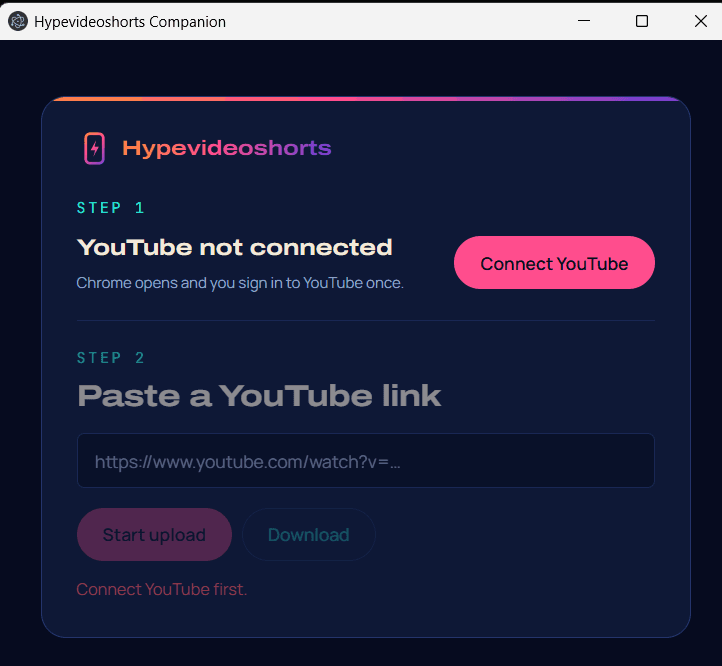
Open the app on your computer. Step 1 tells you whether your YouTube account is connected yet — the first time, it is not.
Step 2
Connect YouTube once
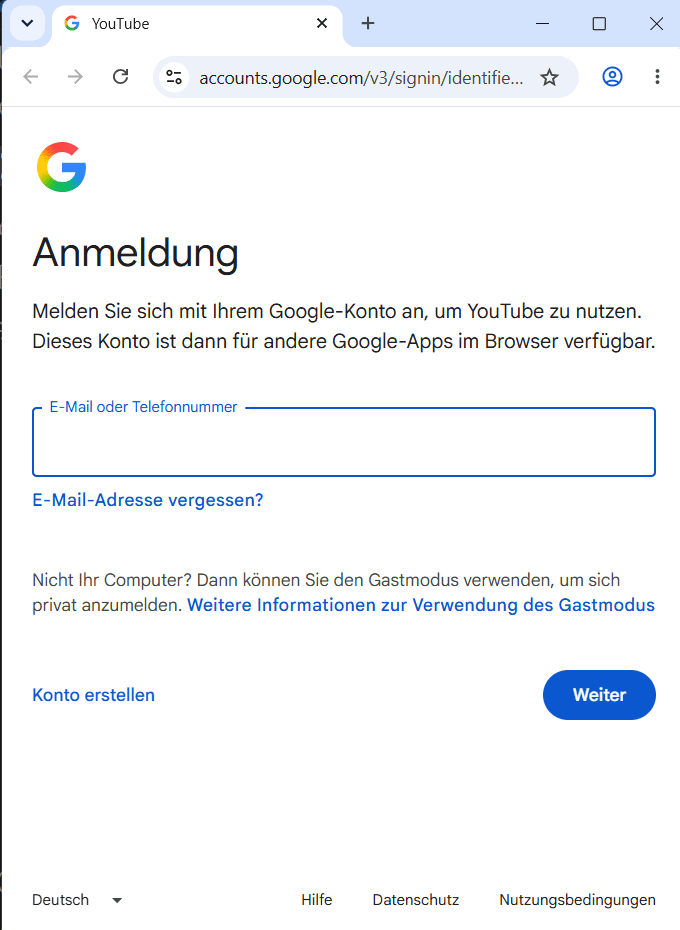
Click Connect YouTube. Chrome opens with a separate profile that belongs to the Companion. Sign in to your Google account there, then close the Chrome window — keep the Companion open. You only do this once.
Step 3
Send the video
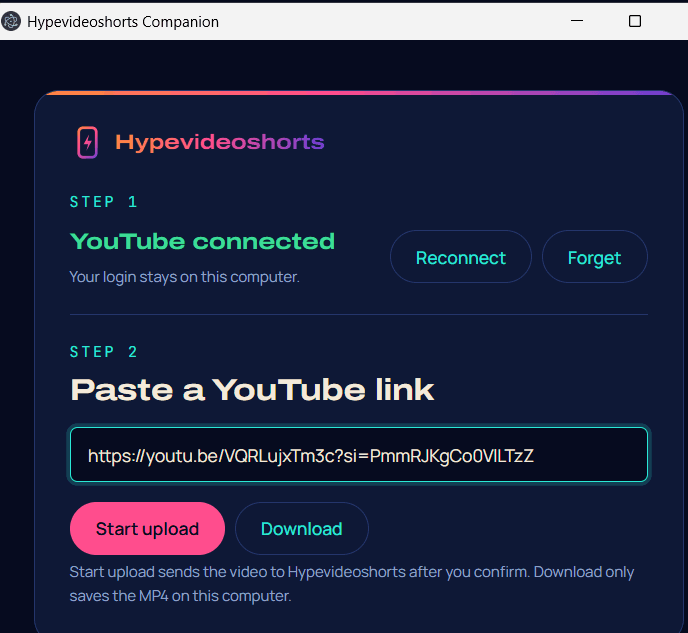
On a failed video in your dashboard, click Import with Companion. Your browser asks whether it may open the Companion — allow it, and the link shows up in Step 2. Nothing happens until you confirm: Start upload sends the video to Hypevideoshorts, Download only saves the MP4 on your computer.
Step 4
Watch it in the browser
The video page shows the download and the upload as they happen. Processing starts on its own once the file has arrived. Keep the Companion open until the import is complete.